Introduction
At some point in managing or researching Instagram accounts, you will likely need data outside of an app interface. Maybe you are building a report for a client. Maybe you want to run your own calculations in a spreadsheet. Maybe you are tracking multiple accounts and need a format that lets you sort, filter, and compare numbers easily.content
CSV, short for comma separated values, is the standard format for this kind of work. It opens directly in any spreadsheet tool and is simple to combine with other data sources. This guide covers exactly how to get Instagram data into CSV format, both for your own account and for public accounts you are researching.
What CSV Export Is Useful For
A CSV file is just a plain text file where each line represents a row of data, with values separated by commas. Spreadsheet programs read this format automatically and display it as organized columns and rows.
For Instagram data specifically, CSV export is useful for building historical records of follower growth, comparing engagement rates across multiple accounts side by side, combining Instagram data with data from other sources in a single report, and running custom calculations or charts that go beyond what any single analytics tool provides natively.
Exporting Your Own Account Data
If you manage a business or creator account, Instagram's native Insights tool provides some export functionality, though it is more limited than dedicated analytics platforms.
Using Instagram Insights
Open your profile and tap into Insights. From here you can review performance data for individual posts, Stories, and your account overall across a selected date range. Instagram's native export options are limited and vary depending on your account type and region, so for more complete CSV export capability, a connected third party analytics tool is generally more reliable.
Using a Connected Analytics Platform
Many analytics tools that connect to your Instagram account through the official API, including several covered in Day 5's analytics tools comparison, offer CSV export as a built in feature. These tools typically let you select a date range and specific metrics, then download a complete CSV file ready for use in a spreadsheet.
Exporting Public Account Data With InstaPV
For researching accounts you do not own, competitors, influencer candidates, or accounts in a niche you are studying, InstaPV Pro provides CSV export directly from its analytics dashboard.
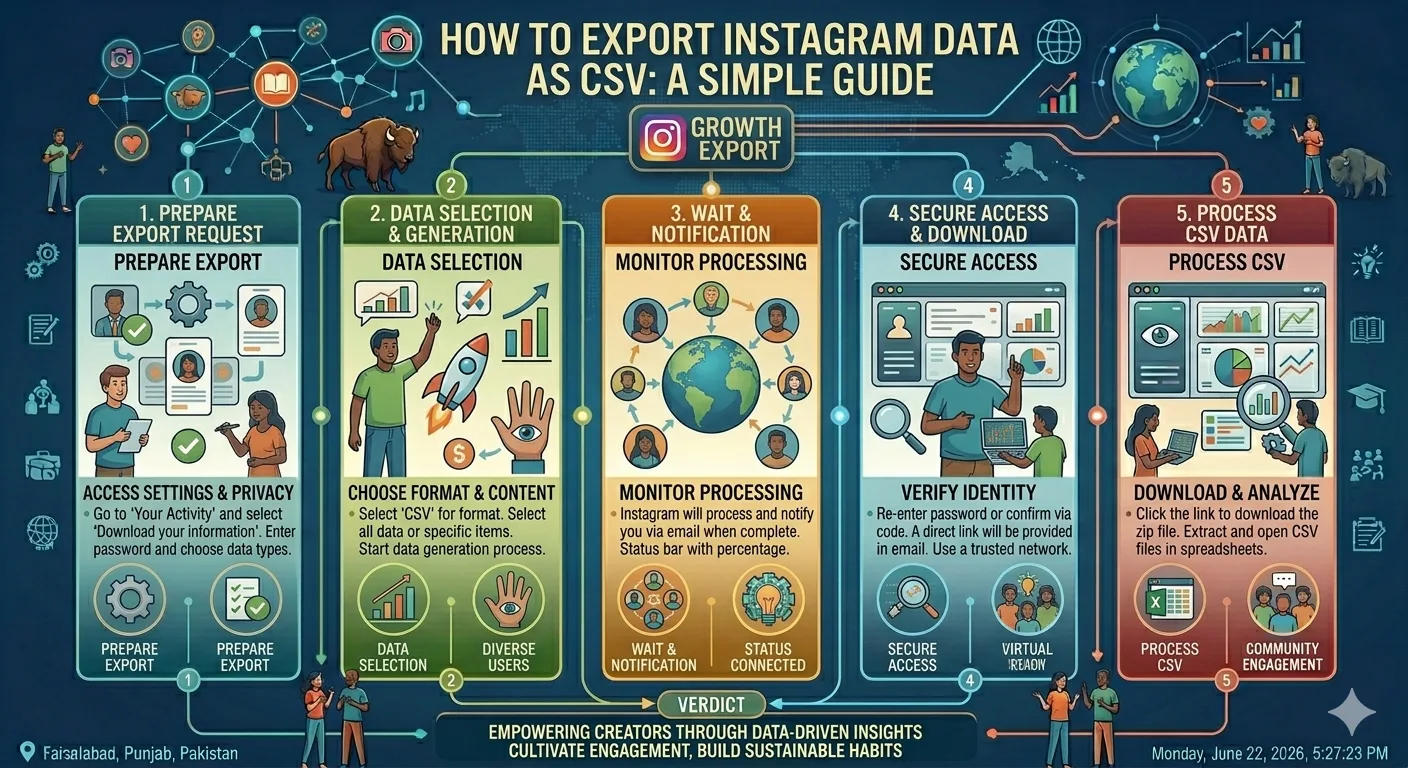
Step by Step Process
Step 1: Search the account.
Go to instapv.xyz and search the public username you want data for.
Step 2: Open the analytics view.
Navigate to the analytics section of the profile to access follower growth and engagement rate data.
Step 3: Select the export option.
Within the analytics dashboard, choose the CSV export option.
Step 4: Download the file.
The CSV file downloads directly to your device, ready to open in any spreadsheet program.
Step 5: Open and organize the data.
Open the downloaded file in your spreadsheet tool of choice. The data will typically be organized with dates in one column and the relevant metric, such as follower count or engagement rate, in another.
Building a Combined CSV Dataset
If you are tracking multiple accounts, as covered in Day 8's saved profiles guide, exporting CSV data for each tracked account and combining them into a single master spreadsheet allows for direct side by side comparison.
Create a consistent structure across all your exports, with columns for account name, date, follower count, engagement rate, and any other metrics relevant to your research. This consistency makes it straightforward to build comparison charts and identify patterns across your full tracked account list.
What to Do With Exported Data
Once you have Instagram data in CSV format, the possibilities for analysis expand significantly beyond what any single platform's interface provides.
You can build custom charts comparing growth trends across multiple accounts. You can calculate month over month percentage changes manually for more granular trend analysis. You can combine Instagram data with sales or website traffic data from other sources to look for correlations. You can build the kind of structured report covered in Day 5's PDF reporting guide using the exported numbers as your data foundation.
Common Issues When Working With CSV Exports
Date formatting can sometimes differ between export sources, particularly if combining data from multiple tools. Check that date columns are formatted consistently before building comparisons across combined datasets.
Some spreadsheet programs may initially misinterpret number formatting, particularly with percentages. Double check that engagement rate figures are displaying as expected after import, since formatting issues can sometimes cause percentages to display as raw decimals or vice versa.
-
Anonymous Instagram Viewing: Is It Legal and Ethical?
-
Instagram Hashtag Strategy: What Works in 2026
-
How to Do Competitor Analysis on Instagram in 2026
Frequently Asked Questions
Q: Is CSV export free, or does it require a paid plan?
For InstaPV, CSV export of public account analytics is included with the Pro plan. For your own account data through Instagram Insights, native export options are free but limited, while connected third party tools vary in pricing as covered in Day 5's analytics tools comparison.
Q: Can I export data for a private Instagram account?
No. As with all the research methods covered throughout this series, CSV export through InstaPV is limited to publicly available data from public accounts.
Q: What is the difference between CSV and PDF export?
CSV is raw data meant for further analysis in a spreadsheet, while PDF, covered in Day 5's reporting guide, is a formatted, presentation ready document meant for sharing directly with clients or stakeholders. Many people use CSV for their own working analysis and PDF for final client facing reports.
Q: How far back does exported historical data go?
This depends on how long the account has been tracked. For InstaPV, historical depth reflects how long the platform has been monitoring that specific public account. Newly searched accounts will have more limited historical data until tracking accumulates over time.
Conclusion
Exporting Instagram data as CSV turns locked in app numbers into a flexible dataset you can analyze, combine, and present however your work requires. Whether you are tracking your own account's performance or building a research dataset on competitors and influencers, the process takes only a few minutes and opens up significantly more analytical flexibility than working within any single platform's interface alone.
Export analytics data for any public Instagram account on InstaPV →