Introduction
Instagram's archive feature is one of the platform's most useful but least understood capabilities. It allows account owners to remove content from public view without permanently deleting it, preserving a private copy of posts and Stories that can be restored later or saved as a personal record even after the content is no longer publicly visible.
For anyone managing an Instagram account, understanding how archiving works and how to access archived content has practical implications for content management, historical record keeping, content repurposing, and the ongoing organization of a long-running Instagram presence.
This guide covers everything worth knowing about Instagram's archive: what gets archived automatically, what can be archived manually, how to access archived content, how to restore it, and the important distinctions between archived content and permanently deleted content.
What Instagram Archives Automatically
Instagram's automatic archiving applies primarily to Stories, which creates a significant amount of archived content for any account that posts Stories regularly.Instapv
Story Archive
When a Story expires after its 24-hour window, Instagram automatically saves a copy to the account's private archive if the Archive Stories setting is enabled in the account's privacy settings. This archived Story is not visible to followers or anyone viewing the profile. It exists only in the account owner's private archive, accessible only to them while logged in.
The Story archive creates a chronological record of all posted Stories going back to whenever the archive feature was first enabled for the account. For accounts that have been actively posting Stories for years, this archive represents an extensive private record of everything published to Stories.
This automatic archiving is the primary reason why account owners can add old Stories to Highlights after the original 24-hour window has passed. The content exists in the private archive and can be pulled from there into a Highlight collection at any time.
Post Archive (Manual)
Unlike Stories, feed posts are not automatically archived. Feed posts are permanently publicly visible until the account owner takes a specific action to either archive or delete them. Archiving a feed post removes it from the public profile grid and from followers' feeds without deleting it permanently.
How to Archive and Unarchive Feed Posts
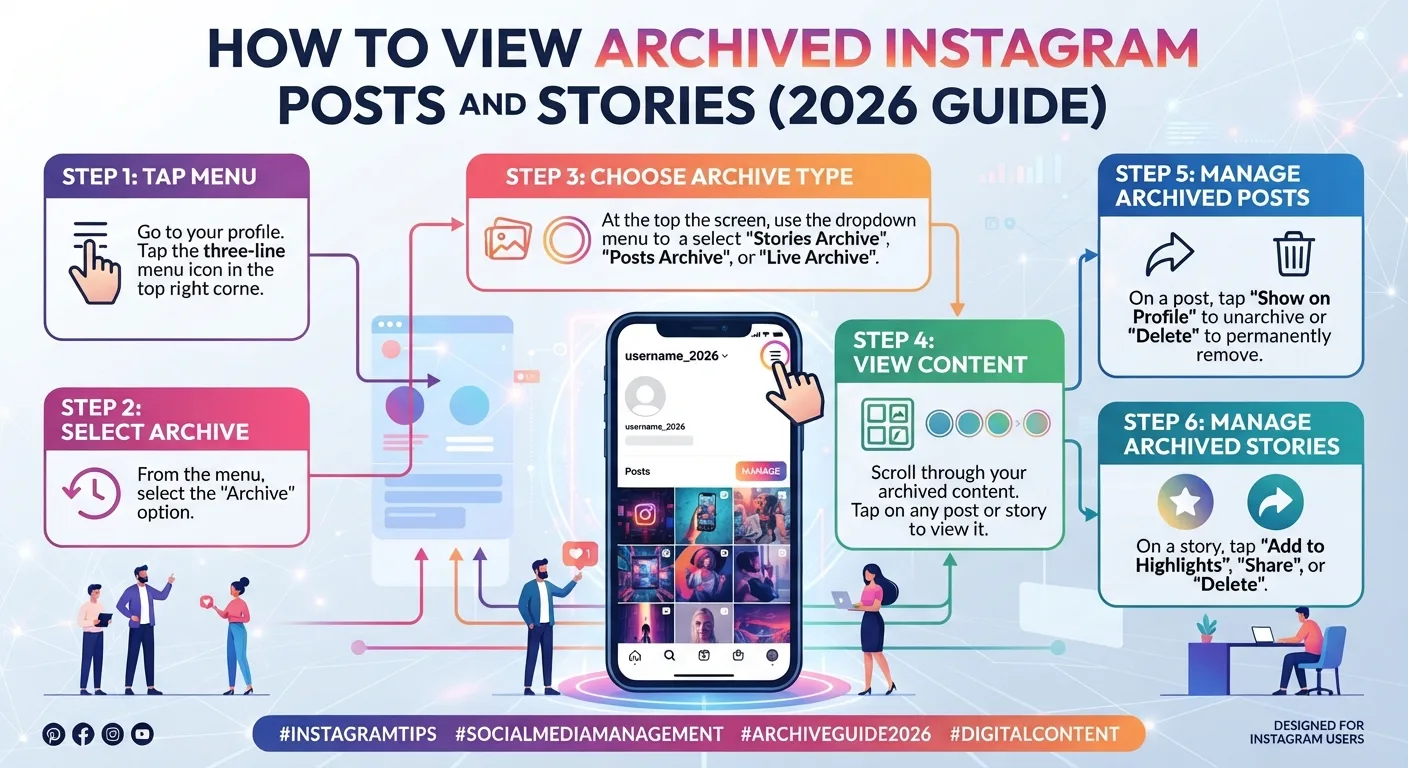
Archiving a feed post is straightforward. Navigate to the post you want to archive on your profile, tap the three-dot menu icon in the top right corner of the post, and select Archive from the options that appear.
The post immediately disappears from the public profile grid and from any follower feeds where it has not already been seen. It moves to the private archive accessible through the account's settings.
To unarchive a post and restore it to the public profile, navigate to your archive through the menu, find the post you want to restore, tap the three-dot menu, and select Show on Profile. The post returns to the public grid, though it appears at its original position based on its original publication timestamp rather than at the top of the grid as a new post would.
This unarchiving behavior has a specific strategic implication: archiving and restoring content does not create a new post that re-enters follower feeds as a fresh post. The restored content returns to the profile grid silently without notification to followers.
Accessing Your Story Archive
The Story archive is accessible through the Instagram app's account settings or profile section, and the navigation path varies slightly depending on the app version.
Generally, navigate to your profile, tap the hamburger menu in the top right corner, look for Your activity, Archive, or a similar navigation path depending on your app version, and select Stories Archive from the resulting options.
The Story archive presents a chronological view of all saved Stories organized by date. You can scroll through this archive to find specific content, filter by date range, and view any Story in its original format including any interactive elements that were part of the original Story.
What Story Archive Content Looks Like
Archived Stories are viewable in their original form including text overlays, stickers, music, interactive elements, and all other elements that were part of the original Story when it was published. They look exactly as they appeared to viewers during the 24-hour window.
This original format preservation is important for anyone using the archive as a historical record or as a source for Highlight content, since the content is not just a static screenshot but the full original Story with its design intact.
Adding Archived Stories to Highlights
The most practically significant use of the Story archive for most account owners is adding old Stories to Highlights after they have expired.
As covered in Day 2's Highlights guide and Day 14's Highlight covers guide, Highlights are permanent collections of Story content that appear on the profile below the bio. While most Highlight content is added during the original Story's 24-hour window, the archive enables adding any previously published Story to a Highlight regardless of when it was originally posted.
To add an archived Story to a Highlight, navigate to the Story archive, find the Story you want to add, tap the three-dot menu or the Highlight option, and select the Highlight collection you want to add it to or create a new collection.
This capability allows retroactive organization of Story content into Highlights even after years of posting, which is useful for accounts that did not initially organize their Stories into Highlights but want to create a structured Highlights section from their content history.
Archive vs Delete: An Important Distinction
Understanding the difference between archiving and deleting content prevents permanent content loss from confusion between these two actions.
Archiving
Archiving removes content from public view while preserving a private copy accessible only to the account owner. Archived content can be restored to public view at any time. It can be added to Highlights in the case of Stories. It remains in the archive indefinitely until the account owner takes further action.
Archiving is reversible. No content is permanently lost through archiving.
Deleting
Deleting permanently removes content from Instagram. Once deleted, a post or Story cannot be recovered through any means within Instagram's interface. The content is gone from the platform permanently.
Some account owners have accidentally deleted content they intended only to archive by selecting the wrong option from the post menu. This permanent deletion is unrecoverable and represents a genuine content management risk worth being aware of.
When to Archive vs Delete
Archive content when you want to remove it from public view temporarily or are unsure whether you might want it back later. Archive content that represents older work you no longer want on your profile but that has historical value as a record. Archive content during account rebrands or pivots where old content no longer fits the new direction but may have future use.
Delete content when it violates guidelines, when it contains outdated or incorrect information, when it represents content you are genuinely certain you never want to see again, or when it has no historical or potential future value.
Downloading Your Archive for External Storage
For account owners who want to preserve a copy of their Instagram content outside of Instagram's own archive, Instagram provides a data download tool that exports all account content in a portable format.
How to Request a Data Download
Go to your account settings, navigate to Your activity or Privacy and Security, and find the Download your information or similar option. Request a download of your data and specify whether you want all data or specific categories.
Instagram prepares the download file, which can take anywhere from a few minutes to several days depending on the amount of data in the account, and sends a notification when the download is ready. The download package contains your posts, Stories, messages, comments, and other account data in a portable format.
What the Downloaded Data Contains
The download package typically includes all photos and videos you have posted, your Stories where available, your messages, your comments and likes, your followers and following lists, and various other account data. The media files are in their original uploaded quality rather than the compressed versions delivered through Instagram's interface.
This download provides the most comprehensive archive of Instagram content available and is particularly valuable as an external backup against account loss, platform changes, or future decisions to close the account.
Using the Archive for Content Repurposing
The archive is not only a historical record. It is a content library that can be actively used for content repurposing and strategy.
Identifying Evergreen Content for Restoration
Reviewing the archive periodically to identify high-performing older content that remains relevant can reveal restoration opportunities. Content that performed strongly when originally published and that covers topics still relevant to the current audience can be restored to the profile or repurposed into new content formats.
As covered in Day 9's CSV export guide and Day 5's PDF reporting guide, combining archive review with historical performance data from Instagram Insights provides the most informed basis for deciding which archived content has ongoing value worth recovering.
Story Archive as a Content Calendar Reference
The Story archive provides a chronological record of what has been posted to Stories over time, which is useful as a reference when planning content to avoid unnecessary repetition and to identify seasonal patterns in what was posted during equivalent periods in previous years.
Repurposing Old Stories as Carousels or Reels
Story content that received strong engagement but was never incorporated into permanent feed content can sometimes be repurposed. A Story series that walked through a process or topic step by step could become a carousel post covering the same content in a format with permanent profile presence and higher save potential.
Archive Privacy and Security Considerations
The archive contains all content ever posted to the account that has not been permanently deleted, including content that may contain personal information, location data, or other sensitive material from earlier periods of account use.
For account owners who have used Instagram for many years, the archive may contain content from periods before they had the same awareness of privacy considerations they have now. Periodically reviewing the archive with current privacy sensibilities, and deleting content that no longer seems appropriate to retain even in a private archive, is a reasonable digital hygiene practice.
The archive is accessible only to the account owner while logged in. Third parties cannot access archived content. InstaPV and similar tools that access publicly available Instagram data cannot access archived content since it is not publicly visible regardless of the account's public or private status.
-
Social Media Report Template: How to Present Instagram Data
-
Instagram Collaboration Features: How They Work and What to Track
-
How InstaPV Helps Recruiters Research Candidate Instagram Profiles
Frequently Asked Questions
Q: Does archiving a post affect its engagement metrics?
Archiving removes the post from public view but does not delete the engagement it has accumulated. If the post is restored to the profile, its original engagement metrics, likes, comments, and saves, are preserved and visible again.
Q: If I archive a post that has been shared to Stories by other accounts, do those shares disappear?
Archiving a feed post removes it from your own profile but does not affect Stories that others have already shared featuring your post. The shared Stories exist on the sharing accounts' profiles independently of your post's archive status.
Q: Can I see who viewed my archived Stories?
Story viewer data is only accessible during the original 24-hour Story window. Once a Story expires and moves to the archive, the viewer list is no longer accessible through any interface. The archived Story itself is preserved but its analytics, including viewer lists, are no longer retrievable.
Q: Does Instagram keep archived content indefinitely?
Instagram's current terms and policies suggest that archived content remains available as long as the account remains active. However, Instagram's data retention policies can change over time. For content you want to preserve permanently and independently of Instagram's future policies, downloading your data as described above provides the most reliable external backup.
Q: Can I archive an entire account rather than individual posts?
Instagram does not offer a single-click function to archive all posts simultaneously. Archiving is done on a post-by-post basis for feed content. For accounts wanting to preserve their content before a significant change, the data download provides the most comprehensive preservation approach regardless of individual post archiving.
Conclusion
Instagram's archive is a genuinely useful content management tool that most account owners underuse. Understanding what gets archived automatically, how to access and manage archived content, the critical distinction between archiving and deleting, and how to use the archive as an active content resource rather than just a historical record transforms it from a passive storage system into an active part of content strategy.
For new account owners, establishing good archiving practices from early on prevents the permanent content loss that comes from confusion between archive and delete, and builds the organized historical record that becomes increasingly valuable as an account grows and accumulates years of content history.
Research how top accounts manage their public content and Highlights on InstaPV →